
Event Organizer Automation with Slack & Google Calendar | n8n, 2025
Inspired by a tutorial from blog.n8n.io
Overview
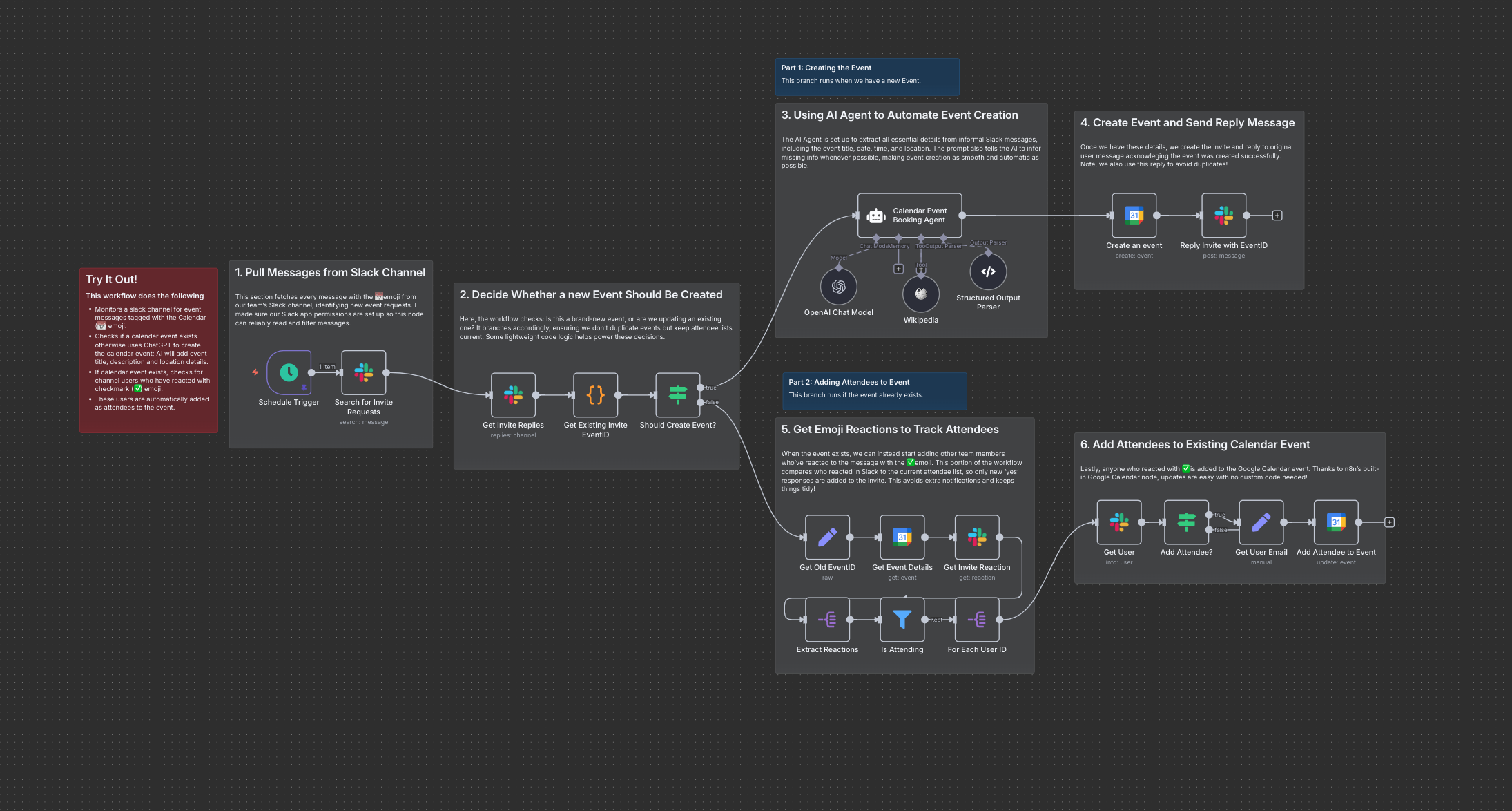
For this project, I built an automated workflow that streamlines event scheduling through Slack by connecting it to Google Calendar and an AI assistant, all orchestrated in n8n. While I followed an online tutorial as a foundation, I made sure to understand and expand on every step, including prompt design for the AI and personalized touches for handling team event logic.
How It Works
Step 1: Pull Event Requests from Slack and Decide If a New Event Should Be Created
This section catches messages tagged for event creation, making sure the workflow only starts for relevant requests and checks whether to set up a new event or update attendee info for an ongoing one.

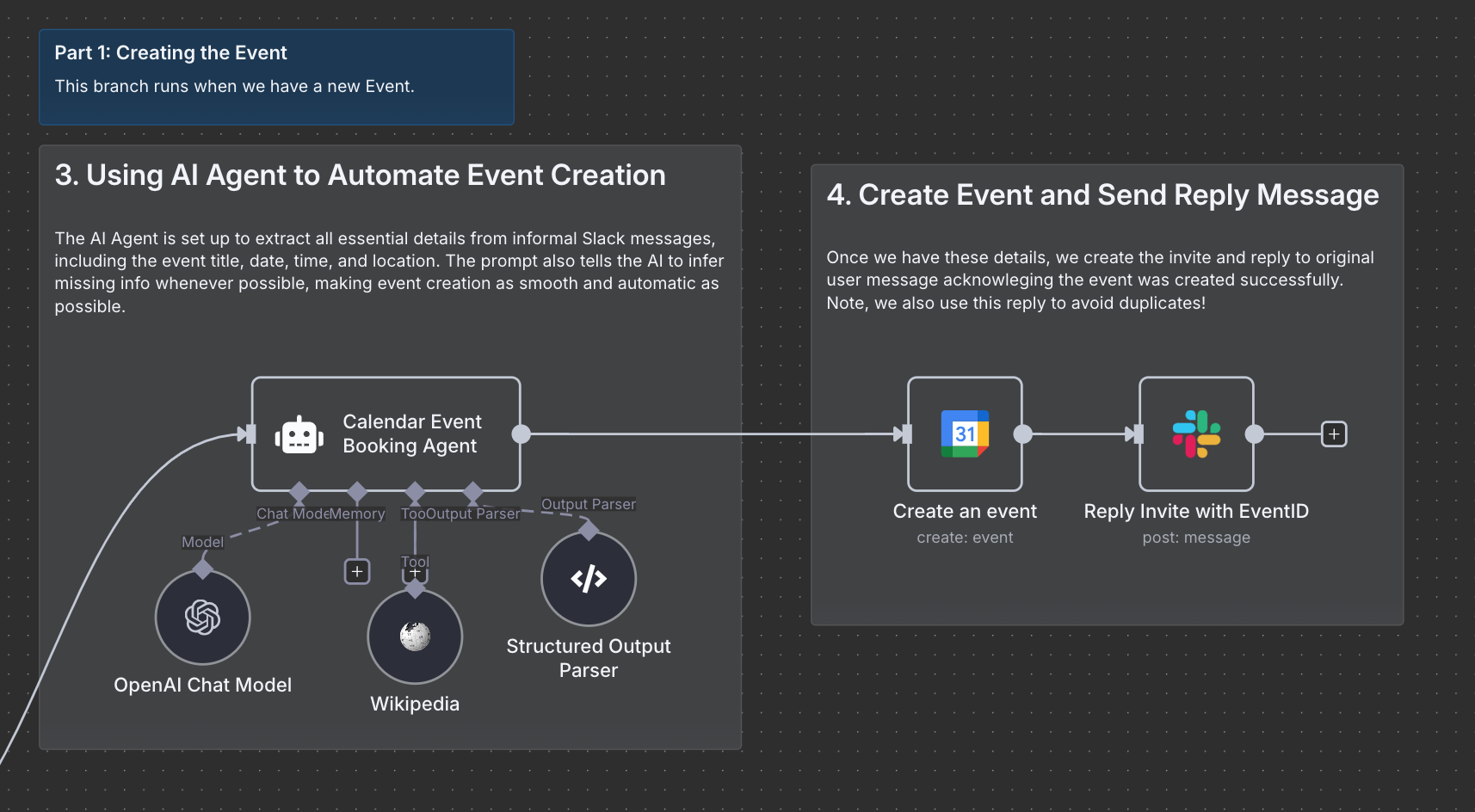
Step 2: Use AI to Extract Event Details and Make Calendar Event
Here, AI parses informal Slack messages for all the info needed to set up a calendar event and creates the Google Calendar invite and lets the requestor know in Slack that it’s done.
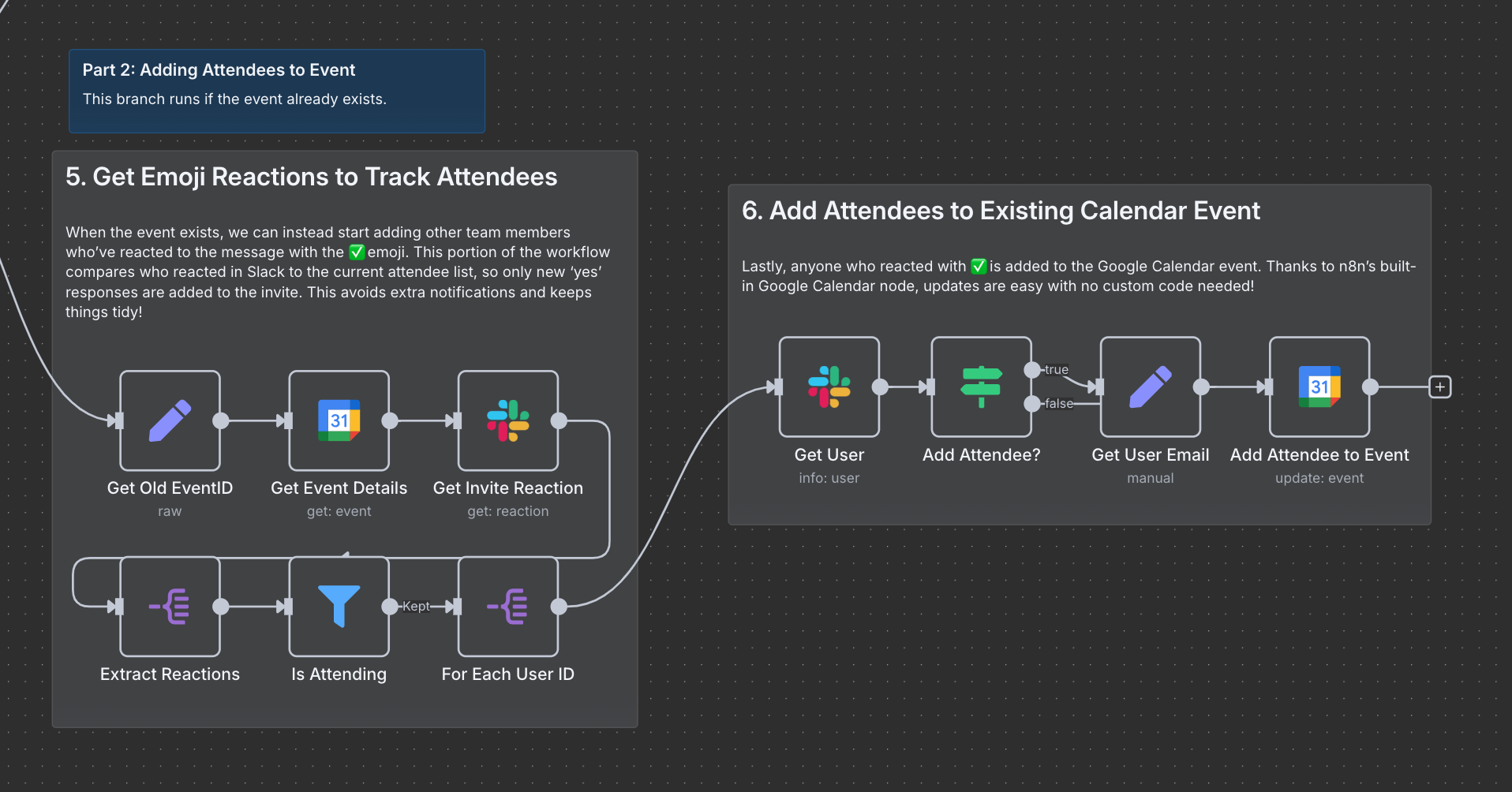
Step 3: Track RSVPs with Emoji Reactions and Add Attendees to Calendar Event
Any teammate who reacts with a check emoji gets added to the event — only new RSVPs are processed. Attendee updates are handled automatically with Google Calendar’s built-in integrations in n8n.
What I Learned
Integrating APIs with Automation Tools: I gained hands-on experience creating Slack apps, setting permissions, and connecting both Slack and Google Calendar to n8n.
AI Prompt Engineering: I designed and iterated on prompts to ensure the AI could reliably extract event details from casual, unstructured messages.
Workflow Logic: I learned to use branching in n8n to manage both new events and updates, avoiding duplicates and keeping attendee lists accurate.
Real-World Automation: I discovered how automations can save time and reduce manual coordination for teams, as well as the value of handling edge cases and improving user experience.